
Before you begin
Make sure you have the following ready. If anything is missing, contact the MeniWorld team and we will send it to you.
- Your full email address — for example
contact@meniworld.com. - The mailbox password that was created for this address in cPanel. This is not your Gmail password and not your cPanel login password.
- The Gmail app installed and updated on your phone.
- An active internet connection (Wi-Fi or mobile data).
Tip: When a mailbox is created, cPanel sends a message titled “Client configuration settings for …”. That email contains the exact server names and ports for your account. Keep it handy — every value you need in this guide is in it.
Your mail settings
These are the values used throughout this guide. Replace the example address with your own mailbox.
| Setting | Value |
|---|---|
| Email address | contact@meniworld.com |
| Username | Your full email address (not just the part before the @) |
| Password | The mailbox password created in cPanel |
| Account type | Personal (IMAP) |
| Incoming server | Your domain name — e.g. meniworld.com — or mail. + your domain |
| Incoming port | 993 with SSL/TLS |
| Outgoing (SMTP) server | Your domain name — e.g. meniworld.com — or mail. + your domain |
| Outgoing port | 465 with SSL/TLS |
| Require sign-in | Enabled (on) |
Use IMAP, not POP3. IMAP keeps your phone, laptop and webmail in sync — read, delete or file a message on one device and it updates everywhere. POP3 downloads mail to a single device and can remove it from the server.
Step-by-step setup
Follow the screens in order. Each step below matches exactly what you will see on your phone.
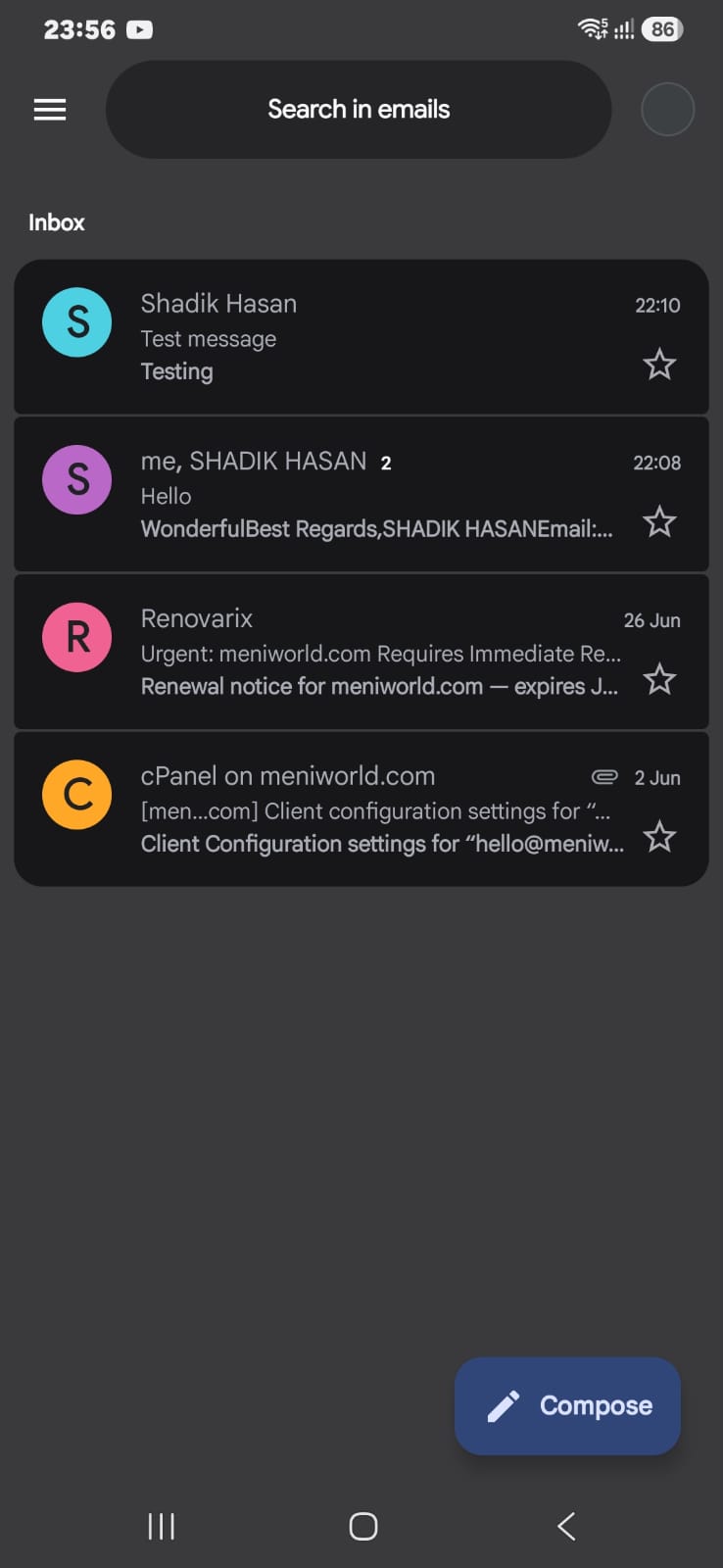
Open the account switcher
Open the Gmail app on your phone. In the top-right corner of the search bar, tap your profile picture (the round avatar).
This opens the list of every mail account already signed in on this device.
 ➜
➜
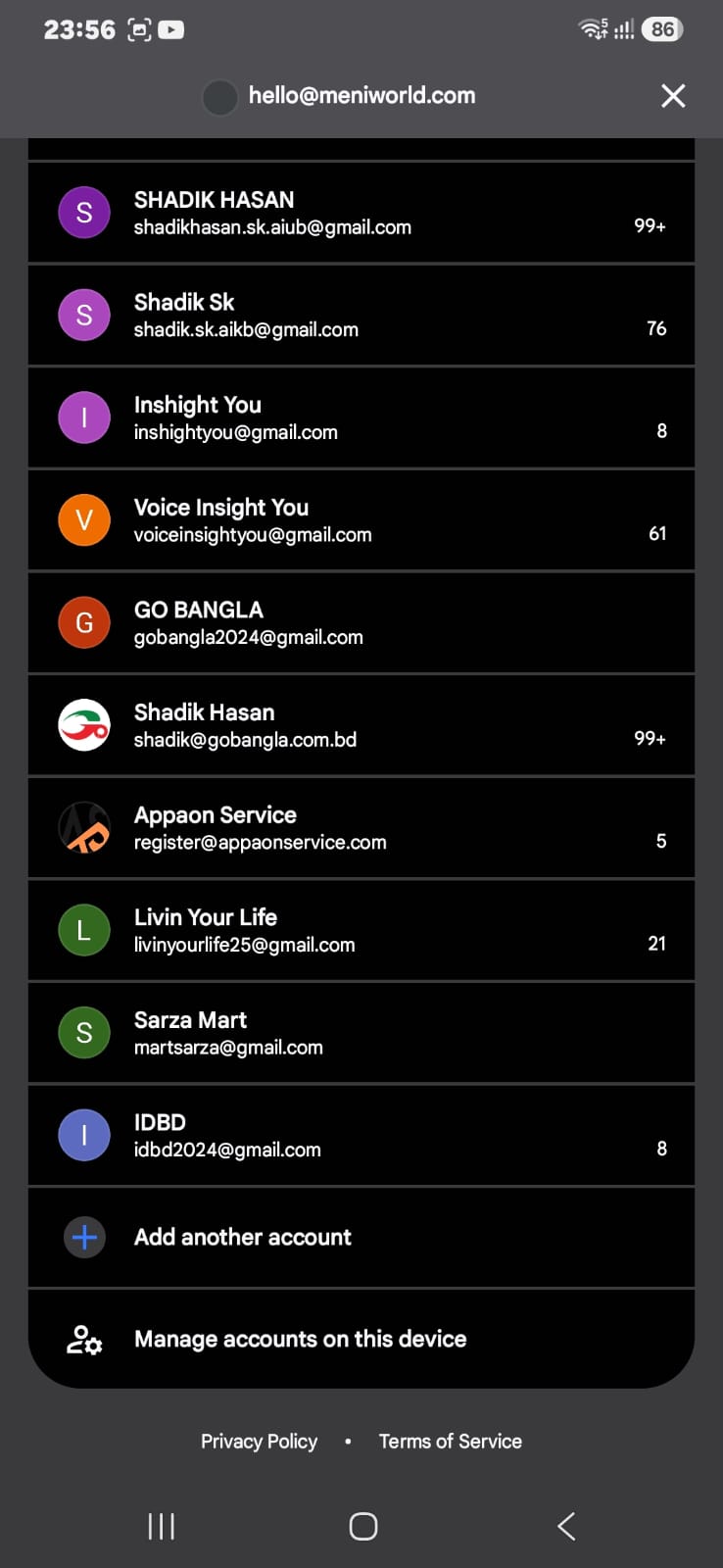
Tap “Add another account”
Scroll to the bottom of the account list and tap Add another account.
Your existing accounts stay exactly as they are — this only adds a new one alongside them.
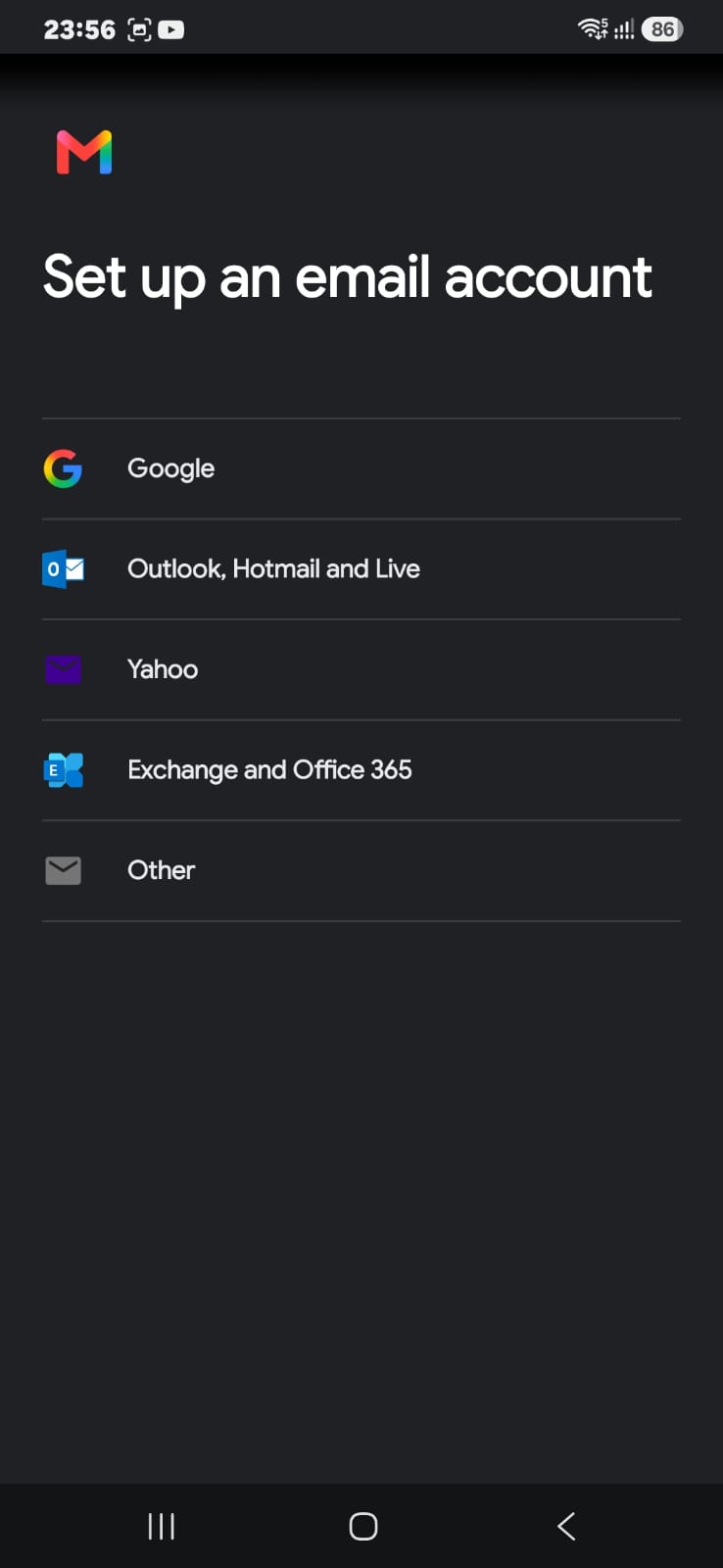
Choose “Other”
On the Set up an email account screen you will see Google, Outlook, Yahoo, Exchange and Other.
Tap Other. A domain mailbox hosted on our cPanel server is not a Google or Outlook account, so this is the correct option.
 ➜
➜
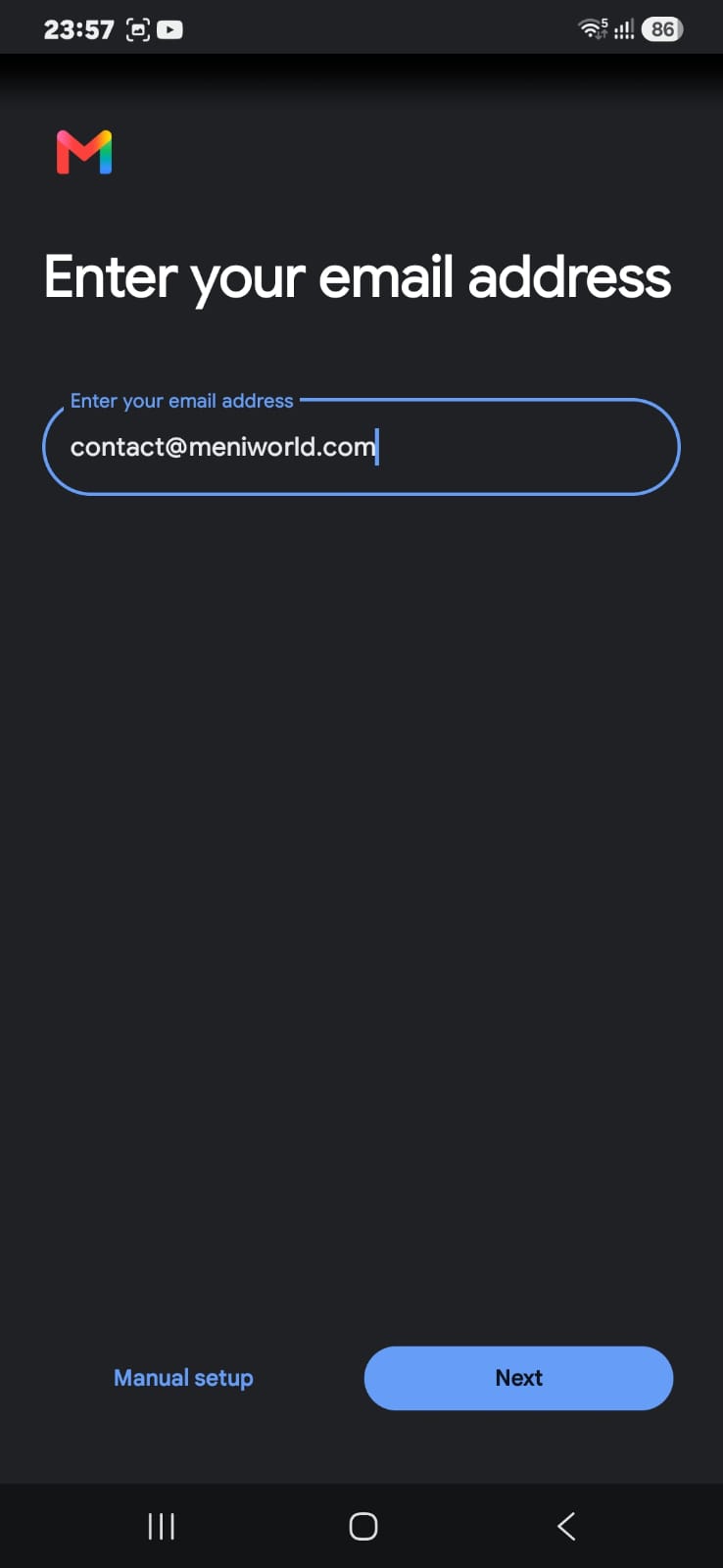
Enter your email address
Type your full domain email address, for example contact@meniworld.com.
Check the spelling carefully, then tap Next.
Note: You can also tap Manual setup here to go straight to the server screens. Tapping Next reaches the same place, so either is fine.
 ➜
➜
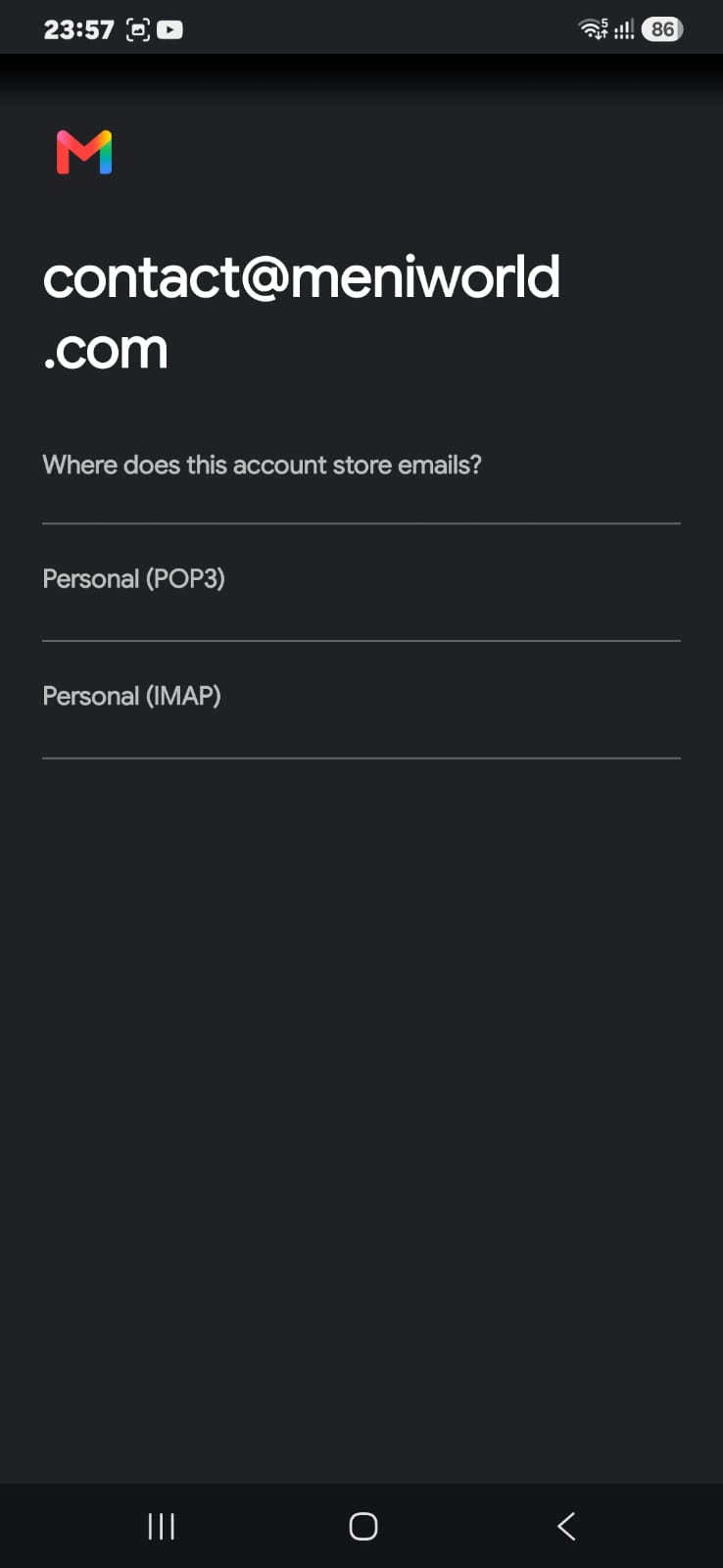
Select “Personal (IMAP)”
Gmail asks “Where does this account store emails?”
Tap Personal (IMAP). Do not choose POP3 — IMAP is what keeps every device in sync.
 ➜
➜
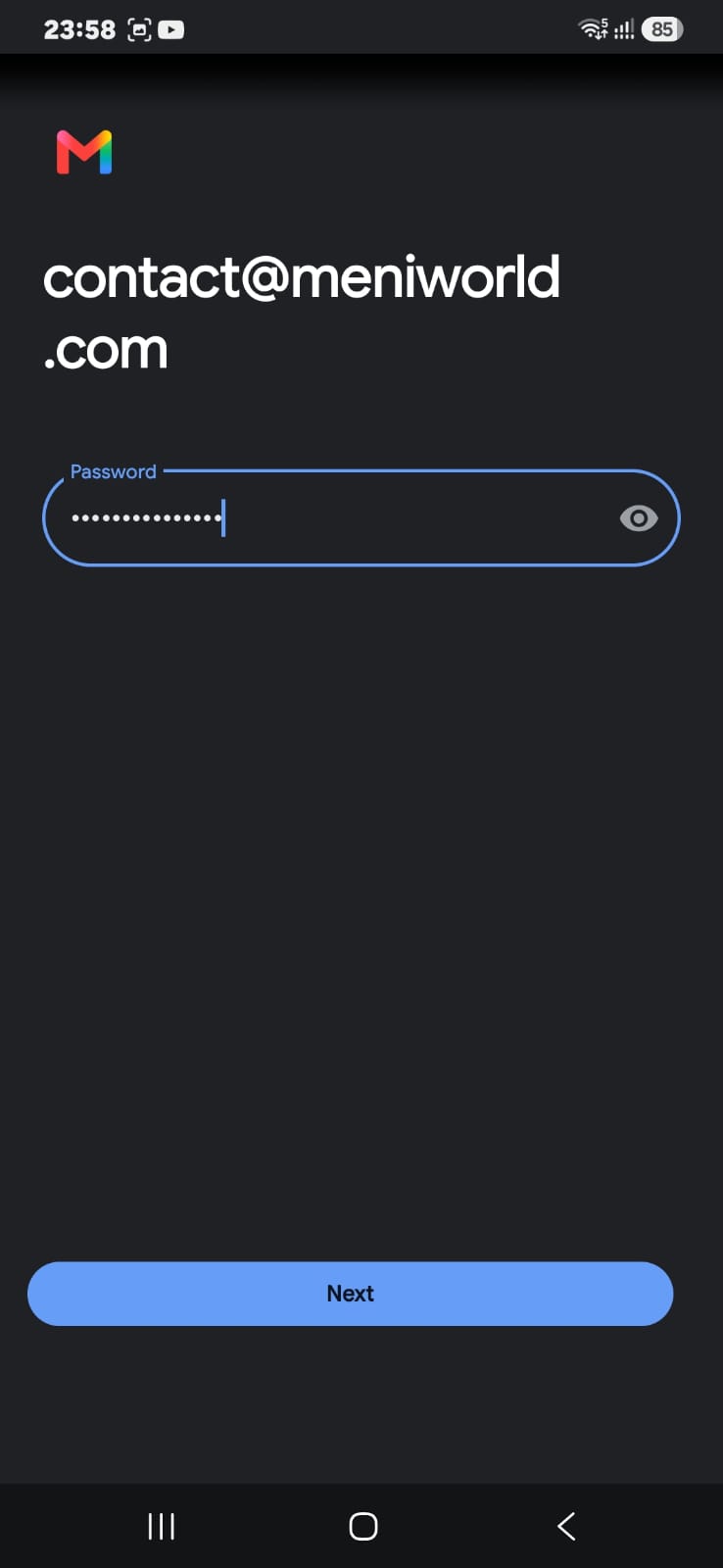
Enter your mailbox password
Type the password that was set for this mailbox in cPanel and tap Next.
Tap the eye icon to reveal what you typed — a mistyped password is the single most common reason setup fails.
 ➜
➜
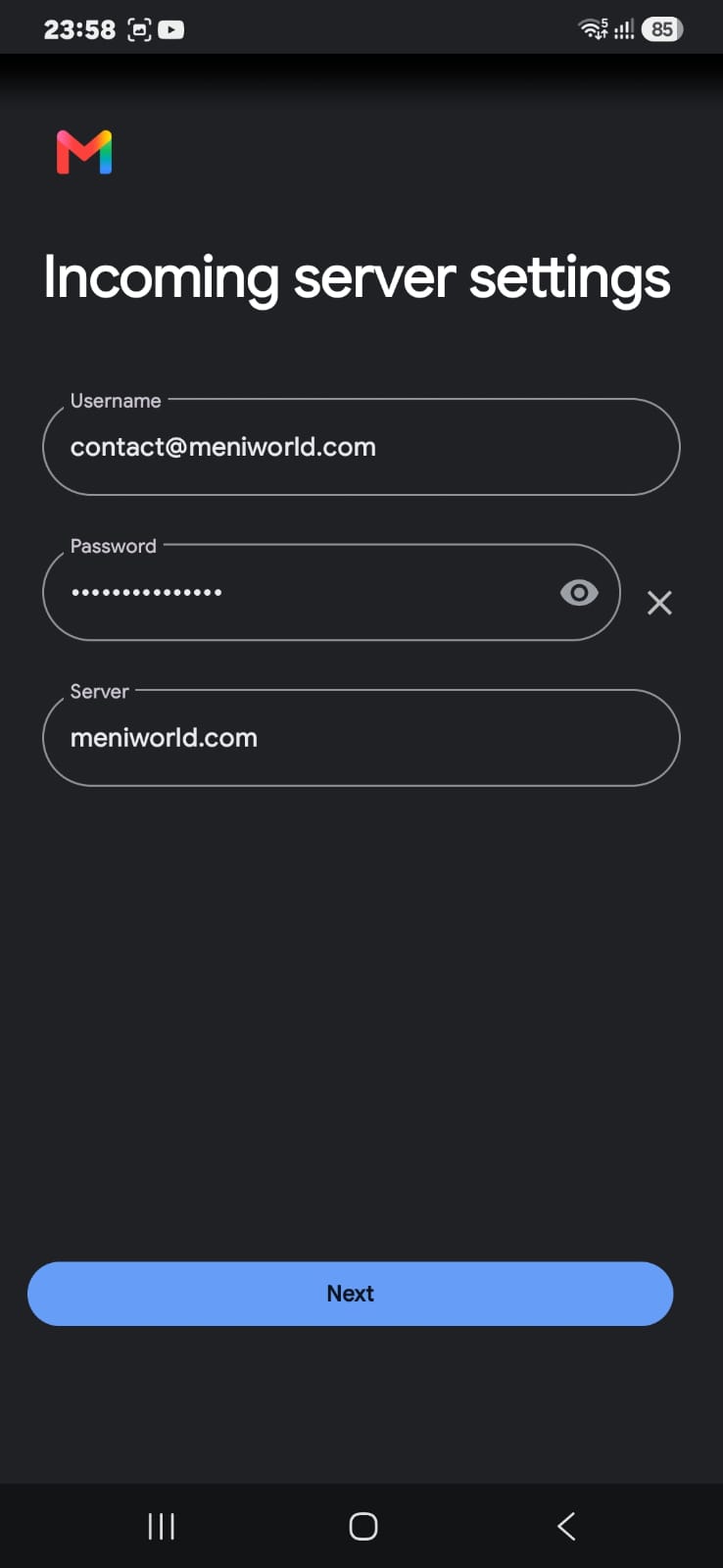
Confirm the incoming server settings
On the Incoming server settings screen, check each field:
- Username — your full email address,
contact@meniworld.com - Password — already filled in from the previous step
- Server — your domain name, e.g.
meniworld.com
Scroll down if you need to confirm the security type is SSL/TLS on port 993, then tap Next.
 ➜
➜
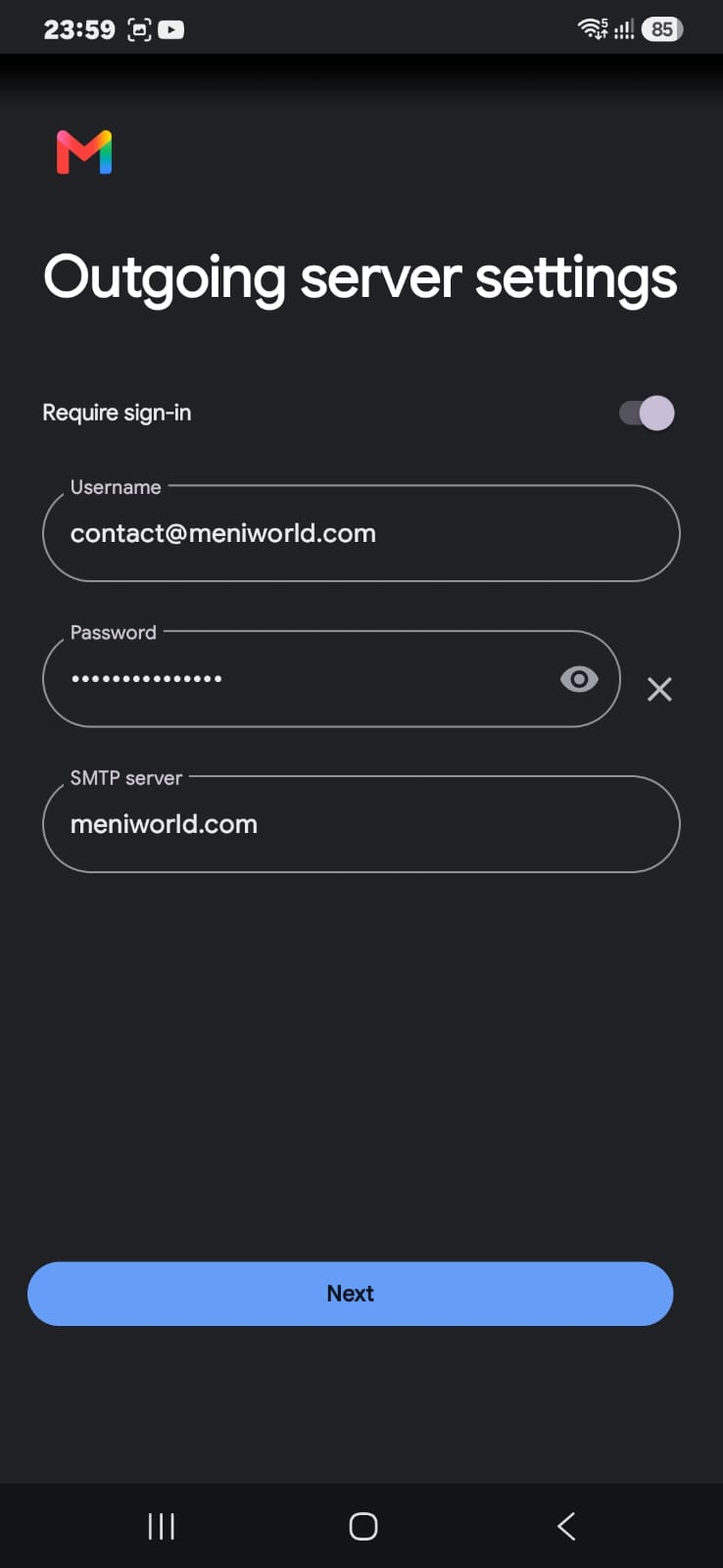
Confirm the outgoing server settings
On the Outgoing server settings screen:
- Keep Require sign-in switched on
- Username — your full email address again
- Password — the same mailbox password
- SMTP server — your domain name, e.g.
meniworld.com
Port 465 with SSL/TLS is the recommended combination. Tap Next.
Important: If “Require sign-in” is turned off, incoming mail will still arrive but sending will fail. Leave it enabled.
 ➜
➜
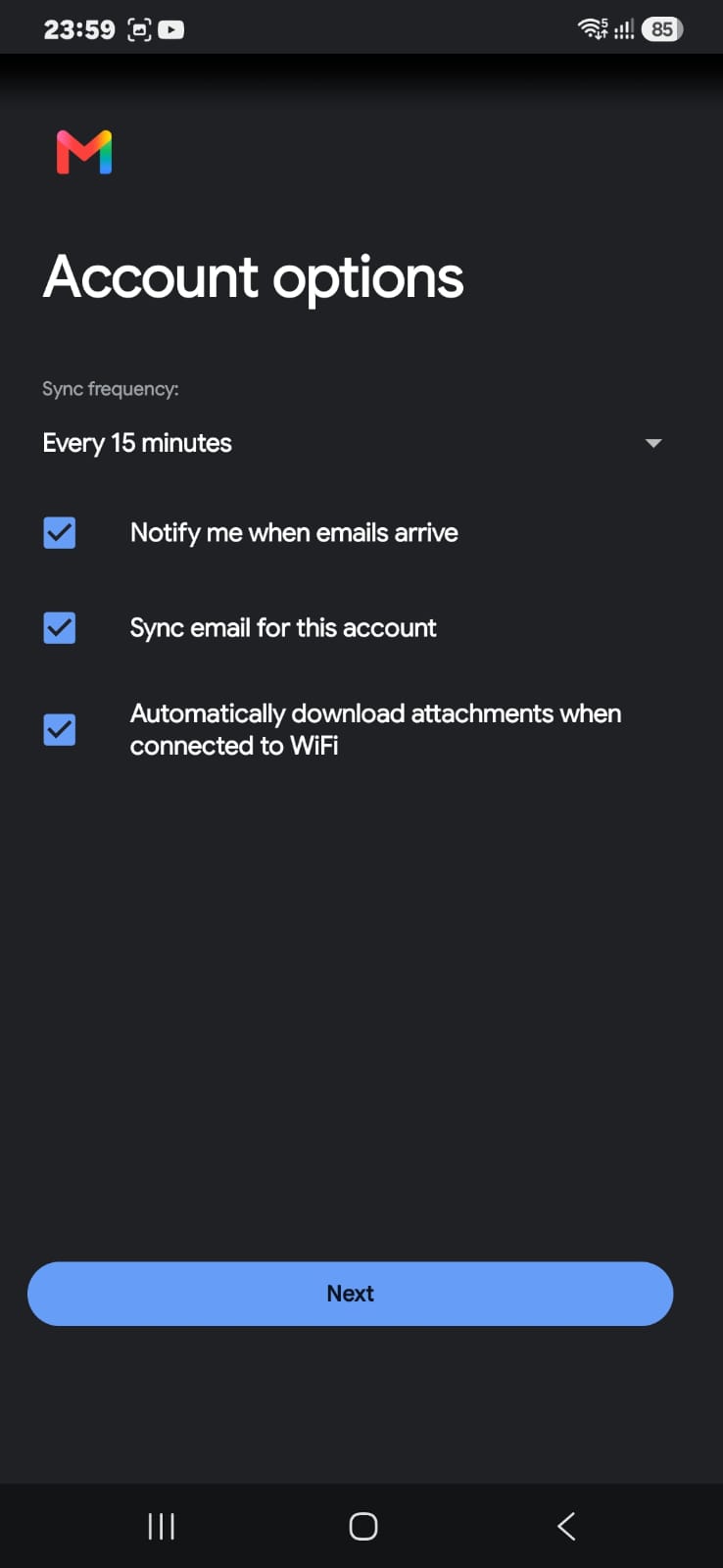
Choose your account options
Set how the account behaves on this device. The recommended settings are:
- Sync frequency — Every 15 minutes
- Notify me when emails arrive — on
- Sync email for this account — on
- Automatically download attachments when connected to WiFi — on
Tap Next.
 ➜
➜
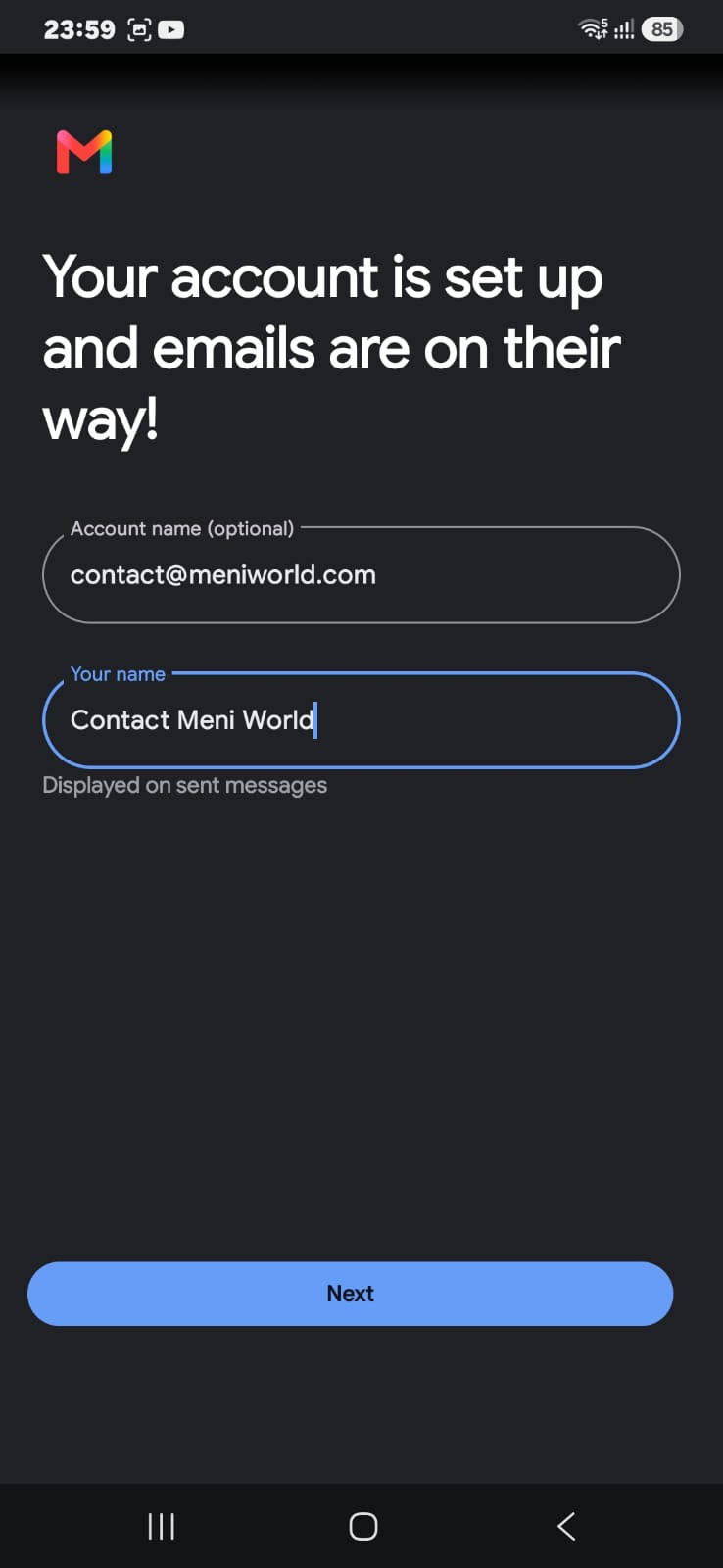
Name the account and your sender name
Gmail confirms: “Your account is set up and emails are on their way!”
- Account name — how this account is labelled inside the app. Leaving the email address here makes it easy to identify.
- Your name — the sender name recipients see, for example
Contact Meni World. Use your real name or the business name.
Tap Next to finish.
 ➜
➜
Verify it works
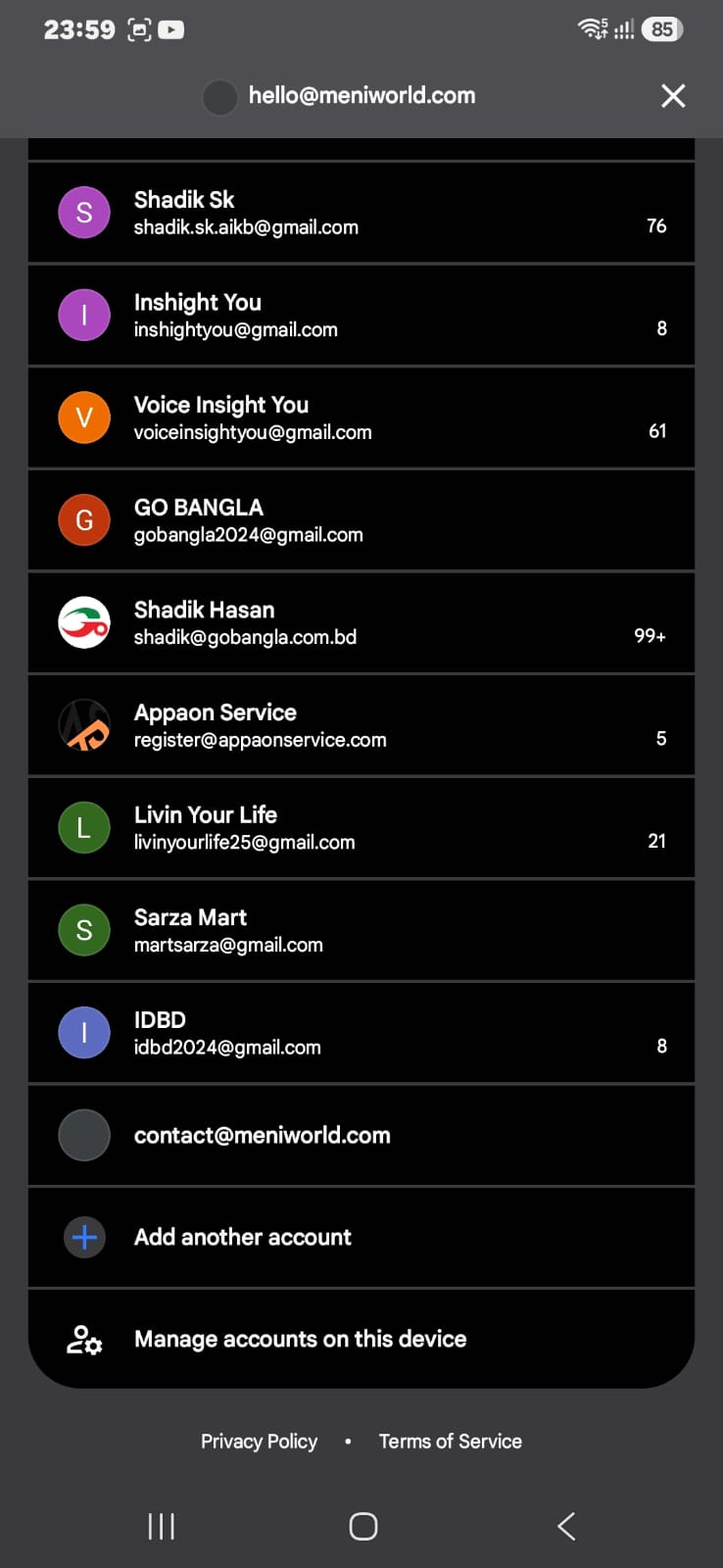
Check the account switcher
Tap your profile avatar again. Your new address — contact@meniworld.com — now appears in the account list.
Tap it to switch to that mailbox. Switch back to any other account the same way.
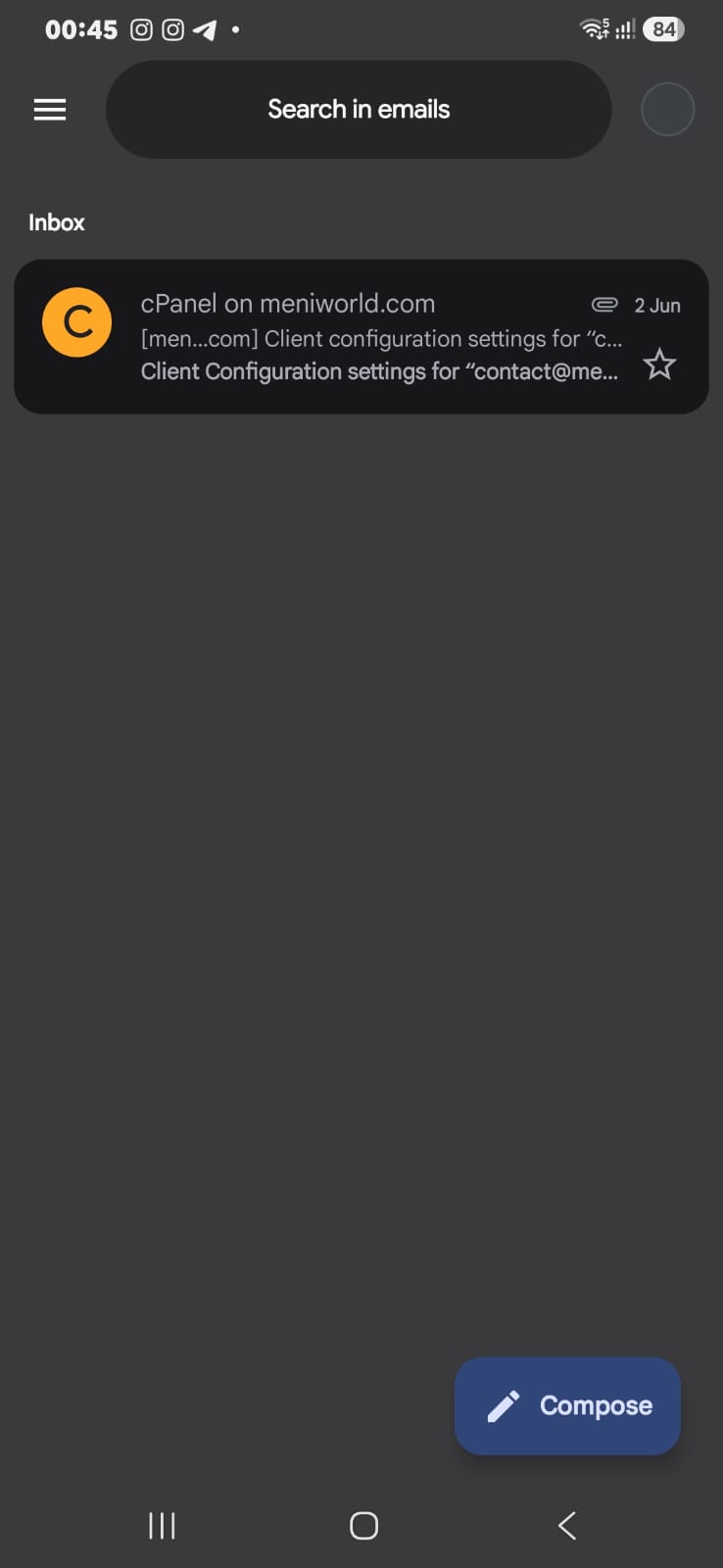
Open the inbox and send a test
The inbox for your domain account loads and begins syncing. Existing messages on the server — such as the cPanel configuration email — appear here.
Finish by testing both directions:
- Tap Compose and send a message to your personal Gmail address.
- Reply from that account and confirm the reply lands in this inbox.
If both work, setup is complete.
 ➜
➜
Troubleshooting
“Couldn’t open connection to server” or “Cannot connect to server”
- Check the server name for a typo. Try
mail.meniworld.comifmeniworld.comdoes not connect. - Confirm the security type is SSL/TLS and the port is 993 incoming, 465 outgoing.
- Switch between Wi-Fi and mobile data — some office and public networks block mail ports.
“Username or password incorrect”
- The username must be the full email address, including
@meniworld.com. - Reveal the password with the eye icon and retype it. Watch for autocorrect capitalising the first letter or adding a trailing space.
- Still failing? Ask us to reset the mailbox password in cPanel and try again.
Mail arrives but sending fails
- This is almost always the outgoing server. Open Settings → your account → Outgoing settings and confirm Require sign-in is on, with the full email address and password filled in.
- If your network blocks port 465, try port 587 with STARTTLS.
Nothing syncs after setup
- Pull down on the inbox to force a refresh.
- Check Settings → your account → Sync email for this account is enabled.
- Check that Android battery optimisation is not restricting Gmail in the background.
FAQ
Can I keep my personal Gmail on the same phone?
Yes. This adds a second account to the same app. Every account stays separate, and you switch between them by tapping the profile avatar.
Will this work on iPhone?
The Gmail app for iOS follows the same flow with slightly different wording. The server names, ports and password stay identical. iPhone users can also add the account under Settings → Mail → Accounts → Add Account → Other.
What is the difference between IMAP and POP3?
IMAP keeps mail on the server and mirrors it to every device, so your phone, computer and webmail always match. POP3 downloads mail to one device and can delete it from the server, which means other devices never see it. Always choose IMAP.
Can I use the same account on a computer too?
Yes. The same settings work in Outlook, Apple Mail, Thunderbird and any other mail client. You can also use webmail in a browser without setting anything up.
Is my password stored safely?
The password is stored by Android in the system account manager, and the connection to the mail server is encrypted with SSL/TLS. Never share the mailbox password over chat or email — ask us for a reset instead.
Still stuck? Send us the exact error message shown on screen along with your email address, and the MeniWorld team will check the mailbox on the server for you.